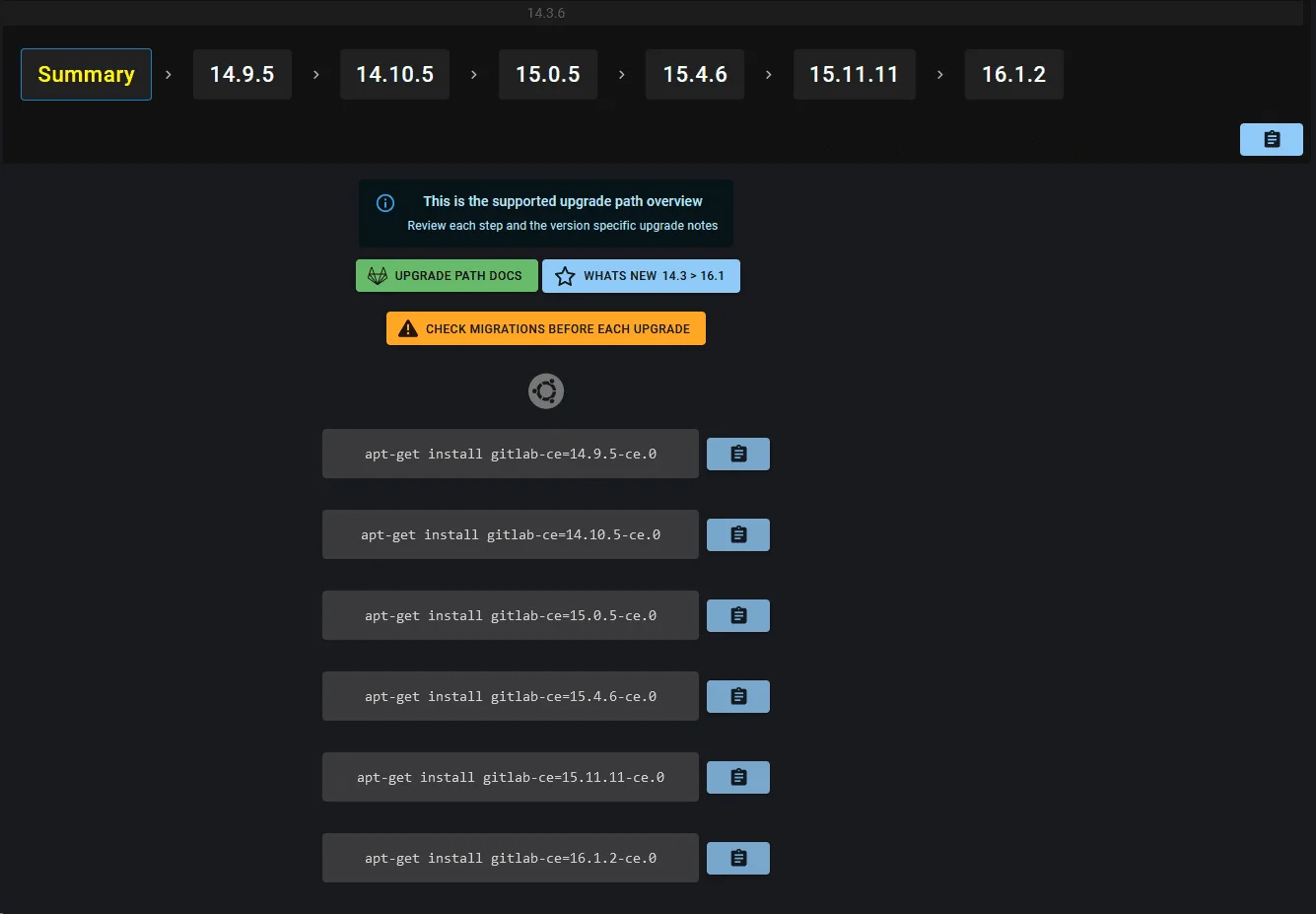
Upgrading software to newer versions is crucial for staying up to date with the latest features, security patches, and improvements. In this blog post, we will explore the step-by-step process of upgrading GitLab from one major version to another in a Debian environment. Our migration path will follow the guidelines provided by the official GitLab documentation found at https://gitlab-com.gitlab.io/support/toolbox/upgrade-path. So, let’s dive in and discover how to perform a successful upgrade of GitLab on Debian.
Section 1: Preparing for the Upgrade
Before initiating the upgrade process, it’s essential to take a few preparatory steps to ensure a smooth transition:
- Review the Release Notes: Familiarize yourself with the release notes of the major version you plan to upgrade to. Pay close attention to any specific requirements or changes that may affect your current setup.
- Backup Your Data: It’s crucial to create a backup of your GitLab instance, including all data and configurations, before proceeding with any upgrade. This step provides a safety net in case any unexpected issues arise during the process.
Section 2: Upgrading GitLab on Debian
Once you have completed the preparation phase, it’s time to begin the upgrade process. Follow the steps outlined below:
-
Stop GitLab Services: Before starting the upgrade, stop all GitLab services to ensure a clean and stable environment. Execute the following command as the root user:
arduino
-
sudo gitlab-ctl stop -
Update the System Packages: Update all the system packages on your Debian server to ensure that you have the latest updates and dependencies. Run the following commands:
sql
-
sudo apt-get update sudo apt-get upgrade -
Review the GitLab Upgrade Path: Visit the official GitLab upgrade path documentation at https://gitlab-com.gitlab.io/support/toolbox/upgrade-path and identify the specific migration path from your current version to the desired major version. Take note of any version-specific instructions.
-
Update the GitLab Package: Use the package manager to update the GitLab package. Execute the following command, replacing
<VERSION>with the target version you wish to upgrade to:php
-
sudo apt-get install gitlab-ce=<VERSION> gitlab-ee=<VERSION> -
Reconfigure GitLab: After successfully updating the GitLab package, reconfigure GitLab using the following command:
-
sudo gitlab-ctl reconfigure -
Start GitLab Services: Start the GitLab services once the reconfiguration process completes:
sql
-
sudo gitlab-ctl start -
Verify the Upgrade: After the services have started, access your GitLab instance using a web browser and ensure that all functionalities are working as expected. Test key features, such as repository access, issue tracking, and CI/CD pipelines, to confirm a successful upgrade.

Section 3: Conclusion
Congratulations! You have successfully upgraded your GitLab instance from one major version to another in a Debian environment. By following the official GitLab upgrade path and performing the necessary preparations, you have ensured a smooth and reliable transition.
To see how I utilize this self-hosted GitLab server for automated CI/CD pipelines, multi-agent code generation, and rapid project delivery, check out my article on from ‘continue…’ to autonomous deployment: how AI shifted 100% of my code.
If you are looking to harden your underlying Linux host after upgrading, take a look at my checklist for hardening Debian and Ubuntu servers or setting up Fail2ban essential SSH jails.
Happy upgrading!