Cloud-hosted AI coding assistants are convenient, but sending proprietary source code or private API keys over external network connections is not always acceptable. Running open-weights Large Language Models (LLMs) locally gives you full privacy, zero latency rate limits, and complete offline availability.
With modern open models like DeepSeek-Coder and lightweight runners like Ollama, running a high-performance coding assistant on your local workstation is straightforward.
Why Run Local AI Coding Models?
- 100% Data Privacy: Source code and API tokens never leave your local machine or internal network.
- Zero API Metering Costs: No monthly subscription fees or token usage limits.
- Offline Availability: Works seamlessly on laptops without an active internet connection.
1. Installing Ollama on Linux & Windows
Ollama simplifies downloading and running GGUF-quantized LLMs with single-command setup.
Installing on Linux
Run the official installation script in your terminal:
curl -fsSL https://ollama.com/install.sh | shPulling the DeepSeek-Coder Model
DeepSeek-Coder is engineered specifically for software development, code autocompletion, and refactoring tasks. To pull the 6.7B parameter model:
ollama pull deepseek-coder:6.7bFor machines with high VRAM GPUs (16GB+ VRAM), pull the larger 33B model:
ollama pull deepseek-coder:33bVerify Ollama service status and test model inference via command line:
ollama run deepseek-coder:6.7b "Write a Python script to parse JSON server logs and output error counts."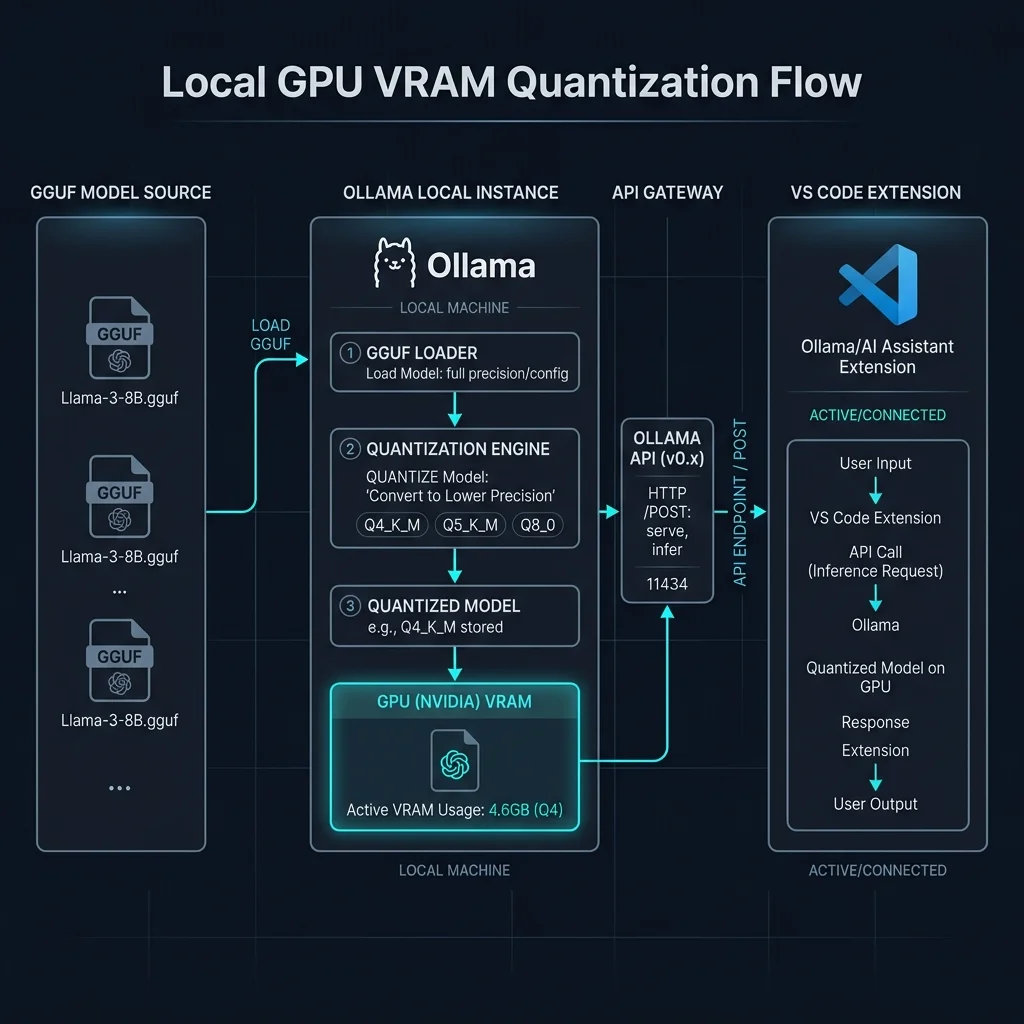
2. Integrating Ollama with VS Code
To turn Ollama into a seamless IDE pair programmer inside Visual Studio Code, use open-source extension integrations like Continue.dev or Twinny.
Configuring Continue.dev Extension
- Install the Continue extension from the VS Code Marketplace.
- Open
~/.continue/config.json. - Configure Ollama as your local model provider:
{
  "models": [
    {
      "title": "DeepSeek Coder 6.7B",
      "provider": "ollama",
      "model": "deepseek-coder:6.7b",
      "apiBase": "http://localhost:11434"
    }
  ],
  "tabAutocompleteModel": {
    "title": "DeepSeek Coder Autocomplete",
    "provider": "ollama",
    "model": "deepseek-coder:1.5b",
    "apiBase": "http://localhost:11434"
  }
}
3. Hardware Requirements & Quantization Tips
- VRAM vs RAM: Running LLMs directly on GPU VRAM (NVIDIA CUDA or Apple Silicon Unified Memory) yields fast inference speeds (30+ tokens/sec). CPU RAM fallback works but is significantly slower.
- Choosing Quantization Levels: Q4_K_M or Q5_K_M quantizations offer the best balance between model intelligence and memory footprint.
Conclusion
Setting up Ollama with DeepSeek-Coder inside VS Code delivers a private, fast, and capable local coding environment. You get real-time code completion and refactoring without relying on external cloud APIs.